

What Is OneNote, Really?
If you’ve ever asked yourself what is OneNote and why it’s sitting on your Microsoft 365 account doing nothing, here’s the plain-English answer: it’s the digital notebook that comes with your subscription, and you can dump absolutely anything into it — text, images, scribbles, whatever — and find it again instantly with search. No filing system to maintain. No “where did I save that” panic. Just one flexible notebook that lives on every device you own.
I’ve been using OneNote since it launched back in 2003. It was exactly what I’d been looking for, and I’ve used it ever since. But it wasn’t until it moved into the cloud, and stopped being tied to one laptop, that it really became indispensable.
The Analogy That Made It Make Sense
Picture a physical lever-arch folder sitting on your shelf. You open it up and what do you see? Dividers organising it into sections, and inside each section, sheets of paper.
That’s it. That’s the whole structure of OneNote, just digital. A notebook is your folder. Sections are your dividers. Pages are your paper. If you’ve ever organised a ring binder, you already understand OneNote’s logic.
Setting Up Your First Notebook
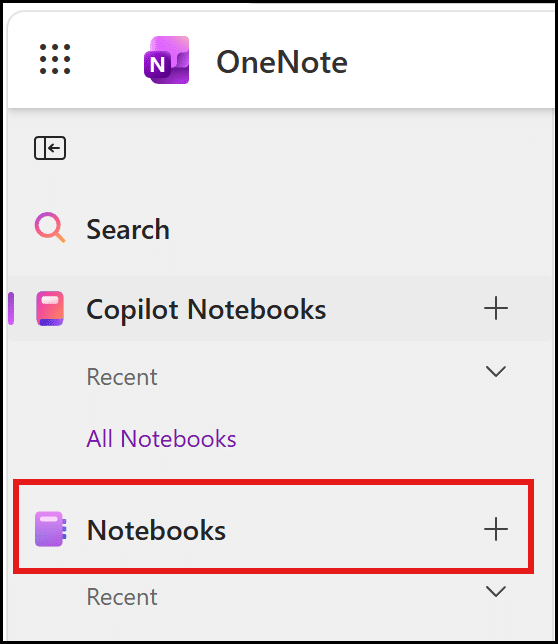
Getting started is refreshingly simple. In OneNote on the web (which works for anyone, regardless of device), you click the plus button next to “Notebook” and give it a name.
A word of caution here: renaming a notebook later is more hassle than it’s worth. A word of caution here: renaming a notebook later is more hassle than it’s worth. Take a breath, think it through, and get the name right the first time.
Adding Your Sections and Pages
Once your notebook exists, it’s time for the dividers — sections. Click “Add section,” type a name, and repeat for as many as you need. I set mine up with Clients, Ideas, Processes, and General Notes.
Quick tip: be a little wary of a “general” or “miscellaneous” section. It’s tempting, but it has a habit of turning into a cluttered catch-all that’s a chore to browse through, even if search can still dig things out. A bit of restraint here pays off later.
Pages work a little differently. Click “New page” within whichever section you’re working in, and you get a blank page, ready to go, with the tab simply labelled “Untitled Page.” Type your title into the title area at the top of the page, and the tab updates automatically to match. If you skip the title and just start typing notes, OneNote will use the first few words on the page as the tab name instead. Small thing, but oddly satisfying.

Why This Flexibility Is the Real Win
Here’s what I love most: nothing here is set in stone. If your structure doesn’t suit you after a week, you can rename a section in seconds, or click and drag pages into a different section entirely. Even deleting a section isn’t as final as it sounds — it goes to OneNote’s recycle bin, where it stays for a couple of months, so you’ve plenty of time to retrieve it if you change your mind. It’s digital, so there’s very little cost to reshuffling as you go.
That’s really the answer to what is OneNote at its core — a flexible, searchable space that bends to how you think, rather than forcing you into somebody else’s system.
So, Should You Actually Use It?
If you’ve been putting off trying OneNote because it seemed vague or pointless, I hope this has cleared things up. Start with one notebook, a handful of sections, and see how it feels after a week. You can always reshuffle later — that’s the whole point.
FAQ
Is OneNote free to use?
Yes — it’s included with any Microsoft 365 licence (business or personal), and there’s also a free standalone version available for anyone without a subscription.
Can I use OneNote on my phone?
Yes, OneNote has apps for iOS and Android, and everything syncs automatically across your devices, so your notes are always with you.
What’s the difference between OneNote and Word?
Word is built for formal, structured documents you intend to finish and share. OneNote is built for messy, ongoing notes, ideas and quick captures — think scrapbook rather than manuscript.
Written with the help of Claude AI, from an original transcript
YouTube Videos
What Is OneNote? The Simple Structure That Makes It Click
How to Add Content to OneNote (Typing, Copy & Paste and More)
Set Up Meeting Notes in OneNote in 3 Clicks (Then Track Follow-Ups With Tags)
How to Create OneNote Templates (and Save Your Own)
How to Search in OneNote — The One Feature That Makes It Worth Using
Related Posts
Think of OneNote Like a Lever-Arch Folder (current post)
OneNote Can Hold More Than You Think
OneNote Meeting Notes Made Ridiculously Simple